Running Small Language Models Locally with Ollama: A Comprehensive Guide to Setup and Optimization

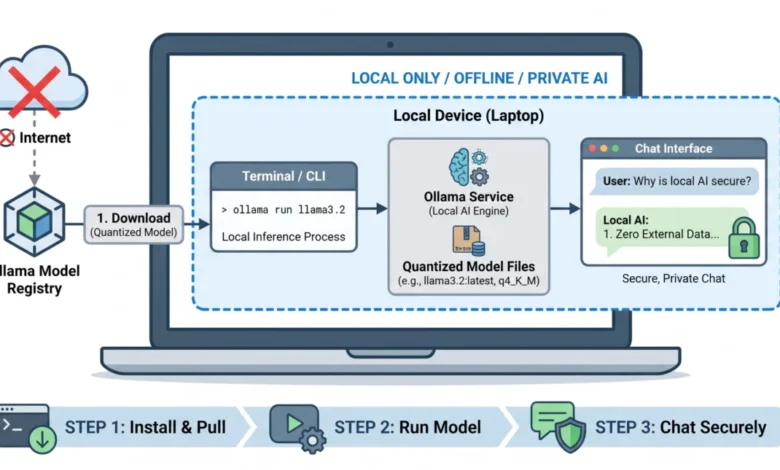
The ability to deploy powerful artificial intelligence models directly on personal computing hardware marks a significant shift in the landscape of AI development and accessibility. This article serves as a definitive guide to getting a small language model (SLM) operational on your local machine in under 15 minutes, leveraging the transformative capabilities of Ollama. Historically, the deployment of AI models was largely confined to expensive, high-performance cloud infrastructure, necessitating continuous internet connectivity, incurring per-token costs, and raising significant data privacy concerns. However, the advent of efficient SLMs and robust orchestration tools like Ollama has democratized access to advanced AI, empowering individuals and organizations to harness its power offline, privately, and without recurring costs. This guide will delve into the practical steps of installing Ollama, downloading a model, and initiating your first local chat session, while also providing crucial background context on the underlying technologies, troubleshooting common issues, and exploring the broader implications of this burgeoning trend in edge AI.
The Paradigm Shift: From Cloud Giants to Local Intelligence
The journey of artificial intelligence has largely been characterized by a relentless pursuit of scale. Early large language models (LLMs) required colossal computational resources, accessible only through major cloud providers such as Amazon Web Services, Google Cloud Platform, and Microsoft Azure. These models, with billions, and sometimes trillions, of parameters, processed data remotely, offering impressive capabilities but coming with inherent trade-offs: latency due to network communication, significant operational costs tied to usage, and, critically, the relinquishment of data control to third-party servers. Enterprises and individual users alike expressed growing concerns about the privacy and security of sensitive information transmitted to and processed by these external services.
This landscape began to evolve with the emergence of a new generation of efficient AI models, aptly termed Small Language Models (SLMs). These models, typically ranging from a few hundred million to tens of billions of parameters, are meticulously designed for optimized performance on more constrained hardware, including laptops, desktops, and even mobile devices. Developers have achieved this by employing advanced architectural innovations, pruning techniques, and, most notably, quantization – a process that reduces the precision of model weights to shrink their memory footprint and accelerate inference without a drastic loss in accuracy. This pivot towards efficiency has made local AI a tangible reality, shifting computational workloads away from massive, expensive cloud APIs and directly onto user-controlled machines.
The theoretical underpinnings of SLMs, as explored in prior analyses such as "Introduction to Small Language Models," laid the groundwork for understanding their design principles. Subsequently, practical guides like "Top 7 Small Language Models You Can Run on a Laptop" showcased specific compact models, including Meta’s Llama 3.2 3B and Google’s Gemma 2 9B, demonstrating their viability for consumer-grade hardware. However, understanding the theory and selecting a model represents only half the equation; the true payoff lies in witnessing a fully capable model executing commands locally, completely offline, privately, and free of per-token charges. This is precisely where Ollama enters the fray, transforming a historically complex endeavor into a remarkably straightforward process.
Ollama: Orchestrating Local AI with Unprecedented Ease
Before the advent of specialized tools, setting up local AI was often an arduous battle. Developers frequently found themselves grappling with the intricacies of CUDA drivers for NVIDIA GPUs, configuring isolated Python virtual environments to manage dependencies, and untangling a myriad of version conflicts that could consume hours, if not days, of effort. This high barrier to entry effectively limited local AI experimentation to a niche of highly technical users. Ollama, an open-source project that rapidly gained traction, has fundamentally reshaped this reality.
Ollama functions as a sophisticated yet user-friendly runtime for large language models. Its success stems from its ability to package complex model architectures into a clean, lightweight background service. It meticulously handles the often-intricate processes of model downloads, manages hardware acceleration natively across different operating systems and GPU types (NVIDIA CUDA, AMD ROCm, Apple Neural Engine), and exposes a simple, local API. This design philosophy positions Ollama as a "Docker for language models," abstracting away the underlying complexities. Instead of wrestling with raw model weights, intricate frameworks, and driver compatibility, users interact with Ollama through a handful of straightforward commands, making local AI deployment accessible to a far broader audience. The tool effectively creates a standardized environment where models can be pulled and run with minimal configuration, fostering rapid prototyping and deployment. This ease of use has been a significant catalyst in the widespread adoption of local AI, drawing praise from developers and researchers alike for its robust, cross-platform compatibility and efficient resource management.
The "Happy Path": Install, Pull, and Chat in Three Steps
Ollama’s design prioritizes a unified, cross-platform experience. Whether operating on macOS, Windows, or Linux, the core setup process remains remarkably consistent, streamlining the journey from zero to an interactive AI chat session.
Step 1: Installing Ollama
The initial step involves acquiring the Ollama installer tailored for your specific operating system. The official Ollama website provides direct download links for macOS, Windows, and Linux distributions. The installation process is typically straightforward, akin to installing any standard application. On macOS, it involves dragging the application to the Applications folder. On Windows, an executable installer guides the user through the process. For Linux users, a simple curl command often suffices to fetch and run the installation script. Once installed, Ollama typically runs as a background service, ready to manage models and serve requests. A minimum of 8GB of RAM is generally recommended for smooth operation, though models like Llama 3.2 3B can often function with less, albeit with increased reliance on slower system memory if dedicated VRAM is insufficient. For optimal performance, especially with larger models, a dedicated GPU with at least 4GB of VRAM is highly beneficial.
Step 2: Downloading Your First Model – Llama 3.2 3B
With Ollama successfully installed and operating discreetly in the background, the next crucial step is to download an actual language model. Open your system’s terminal (or Command Prompt/PowerShell on Windows) and execute a simple command. For this demonstration, we will download Llama 3.2 3B, a Meta-developed model known for its excellent balance of speed and capability, making it an ideal choice for everyday laptop use and general-purpose tasks.
# Verify Ollama is running by checking the version
ollama --version

# Pull and immediately run the Llama 3.2 3B model
ollama run llama3.2
Upon executing ollama run llama3.2, Ollama will initiate the download of the model’s various layers. Llama 3.2 3B, being well-optimized through quantization, typically weighs in at approximately 2.0 GB. On a standard broadband connection, this download can be completed in under three minutes, a testament to the efficiency of modern model compression techniques. The --version command is a useful preliminary check to ensure the Ollama daemon is active and responsive.
Step 3: Engaging in Your First Local AI Chat Session
Once the model download reaches 100% completion, your terminal seamlessly transforms into an interactive chat interface. At this juncture, you are actively communicating with an artificial intelligence model running entirely on your local hardware. This means no internet connection is required for subsequent interactions, no data leaves your machine, and your privacy is fully maintained. To initiate a conversation and test the model’s capabilities, consider using a prompt like the following:
>>> Write a three-bullet-point summary explaining why local AI is secure.

- **Zero External Data Transmission**: Your prompts and data never leave your local machine, eliminating the risk of cloud-based data leaks or third-party logging.
- **Complete Offline Functionality**: Because the model runs entirely on your local hardware, it requires no internet connection, preventing network-based interception and ensuring continuity even in disconnected environments.
- **Total Infrastructure Control**: You retain absolute ownership over the hardware and environment, allowing you to enforce strict access controls, implement custom security protocols, and ensure compliance with specific data governance policies.

>>> /bye
The model’s response directly illustrates the core security advantages of local AI. To terminate the chat session at any point, simply type /bye and press enter. This immediate, private interaction highlights the tangible benefits of local AI deployment, moving beyond theoretical discussions to practical, secure applications.
Understanding the Underpinnings: Model Tags and Quantization
The three-step process described above feels deceptively simple, yet a significant amount of sophisticated engineering transpires behind the scenes when you execute ollama run llama3.2. A deeper understanding of what is now residing on your hard drive is crucial for making informed decisions regarding model selection, memory management, and overall performance optimization.
When a specific model tag is not provided, Ollama automatically appends :latest. For the Llama 3.2 series, this tag typically points to the 3-billion parameter variant, which represents an excellent compromise between computational demands and model capability for consumer hardware. However, the most critical aspect to grasp is the concept of quantization.
A 3-billion parameter model, if stored at standard 16-bit floating-point precision (fp16), would ordinarily require approximately 6 GB of VRAM solely for its weights. Given that the Llama 3.2 3B download was around 2.0 GB, a significant discrepancy is apparent. This is where Ollama’s default to 4-bit quantization (specifically, q4_K_M) comes into play. Quantization is a technique that compresses the model’s weights from high-precision floating-point numbers down to lower-precision integers, in this case, 4-bit integers. This process dramatically cuts the memory footprint by over 60% and noticeably speeds up inference, with only a marginal and often imperceptible hit to accuracy for most practical applications. It is precisely this advanced compression technology that enables capable language models to run comfortably on laptops and other consumer-grade hardware that lack the immense VRAM capacities of enterprise GPUs. Without quantization, the widespread adoption of local SLMs would be severely hampered by prohibitive hardware requirements.
Output Sanity Check: Recognizing Performance Degradation
Given the compact nature of 3B parameter models and the varying capabilities of consumer hardware, it is possible for them to exhibit signs of strain when system resources are tight. Recognizing these symptoms is crucial for immediate diagnosis and corrective action. Degraded output can manifest as:
- Slow, stuttering generation: Text appears one word at a time, with significant pauses between words or sentences.
- Repetitive or nonsensical responses: The model gets stuck in loops, repeats phrases, or generates text that lacks coherence or relevance to the prompt.
- Incomplete answers: The model abruptly stops generating text mid-sentence, indicating a resource bottleneck or an internal error.
- High CPU usage warnings: If you monitor system resources, you might observe the CPU being heavily utilized, suggesting the model has offloaded computation from the GPU due to insufficient VRAM.
If your model’s output demonstrates any of these degraded characteristics, it’s a clear signal that the system is struggling to keep up, and the subsequent troubleshooting section will provide actionable solutions.
Troubleshooting Common First-Run Failures
While Ollama’s installation and initial setup are generally smooth, variations in hardware configurations and existing software environments can occasionally lead to hiccups. Instead of sifting through complex log files, a quick reference to common first-run symptoms can facilitate rapid diagnosis and resolution.
| Symptom / Error | Root Cause | The Immediate Fix —————-
Related posts: